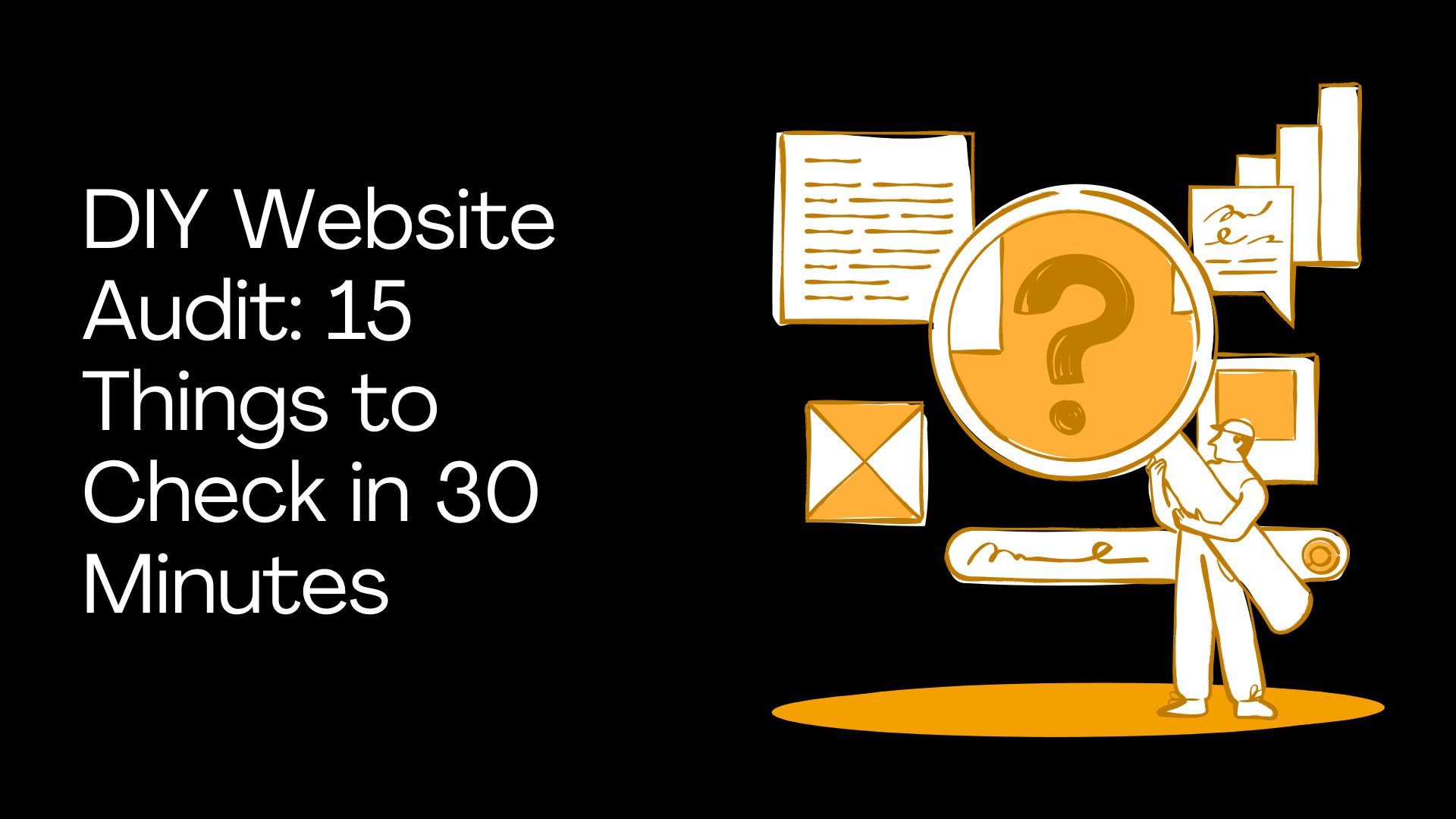
You do not need a full technical audit to find the obvious problems on your website. In most cases, a business owner with 30 minutes and a few free tools can spot the issues that are likely costing enquiries, confusing visitors or stopping the site from doing its job.
This is not a deep SEO crawl or a developer level performance review. It is a practical, 15 point checklist that covers clarity, trust, mobile usability, speed, CTAs, forms, copy, navigation, SEO basics and accessibility. You score each check out of 2, total it up and walk away knowing whether you need quick fixes, a deeper audit or a proper conversation about a redesign. For the full picture of what your website needs to do, our web design pillar guide covers everything. This article is the quick health check.
The Straight Answer: You Can Spot Most Website Problems in 30 Minutes
Most website issues are not hidden deep in the code. They are sitting in plain sight on the homepage, the service pages and the contact page. Things like:
A headline that does not explain what the business does
No clear call to action above the fold
A contact form that is broken or sends submissions to spam
A phone number that is not clickable on mobile
Service pages that are thin, vague or missing entirely
Stock photos where real proof should be
A site that takes 6 seconds to load on a phone
No tracking set up, so nobody knows whether the site is working
A DIY website audit will not replace a full technical review. But it can quickly show whether your website has obvious leaks that may be costing you leads.
If your site is getting traffic but not turning it into phone calls, quote requests or bookings, start here. Our guide on why your website gets traffic but no enquiries covers the conversion side in detail. This audit helps you find the specific problems.
How This 30 Minute Website Audit Works
The audit works best if you test one page at a time. Start with the pages that matter most for leads and revenue.
Pages to test
Homepage (first impression, clarity, trust)
One key service page (the service that matters most to the business)
Contact page (conversion path, form, phone, map)
One landing page, if you are running ads
One blog or article page, if content is part of your strategy
Scoring system
Each of the 15 checks gets a score from 0 to 2:
0 points: Problem found, missing or broken
1 point: Partly okay but needs work
2 points: Working well
Total possible score: 30 points
Score | What It Means | What to Do Next |
|---|---|---|
24-30 | Healthy website with minor improvements needed | Fix small issues. Test CTAs. Review tracking. Monitor monthly. |
16-23 | Decent foundation, but leaking opportunities | Prioritise CTA, mobile, trust and speed fixes. Improve service pages. |
8-15 | Serious issues likely costing enquiries | Fix conversion paths first. Consider a deeper professional audit. |
0-7 | High risk. Major problems across the site | Get a proper audit. Evaluate whether a rebuild is more cost effective. |
DIY Website Audit Checklist: 15 Things to Check
1. Can You Understand the Website in 10 Seconds?
Open the homepage and ask four questions: What does this business do? Who is it for? Where does it operate? What should I do next?
If the answers are not obvious within seconds, visitors are leaving before they read anything else. This is the single most important check on the list.
What to look for:
A headline that clearly states the service and location
A subheading or supporting line that explains who it helps
A visible call to action above the fold
No vague phrases like "innovative solutions" or "trusted partner"
Score: 0 = unclear or vague. 1 = partly clear but needs work. 2 = obvious within seconds.
Free tool: No tool needed. Ask someone unfamiliar with the business to do the 10 second test.
For a detailed framework on getting this right, see our guide on how to write a homepage that converts.
2. Is the Main CTA Obvious?
Every important page should have a clear primary action. Not "Learn More". Not "Submit". Something specific like "Request a Quote", "Call Now" or "Book a Consultation".
What to look for:
A primary CTA button visible above the fold
The same CTA repeated lower on the page
CTA copy that describes the action, not just a generic label
CTA visible on both desktop and mobile
Score: 0 = no clear CTA. 1 = CTA exists but is weak, hidden or inconsistent. 2 = CTA is clear, repeated and easy to act on.
Free tool: Manual check on desktop and mobile.
Quick fix: Replace vague button text with specific action copy. Add the CTA above the fold. Repeat it after every major section of the page.
3. Does the Website Build Trust Quickly?
Trust is what turns a visitor into an enquiry. If someone lands on your site and sees no reviews, no real photos, no case studies and no credentials, they are far more likely to leave and try the next result.
What to look for:
Google reviews or testimonials visible on key pages
Case studies or project examples with real details
Real team or founder photos (not stock images)
Client logos, certifications, licences or awards
Proof placed near forms and CTAs, not buried on a separate page
Score: 0 = little or no proof. 1 = proof exists but is buried or vague. 2 = strong proof appears early and feels genuine.
Free tool: Manual review.
4. Does the Website Work Properly on Mobile?
Open the website on your actual phone. Not a browser resize. Not a simulator. Your phone.
What to check:
Is the headline readable without zooming?
Are buttons large enough to tap easily?
Is the phone number clickable (tap to call)?
Is the menu simple and easy to navigate?
Does the contact form feel easy to complete on a small screen?
Does anything overlap, break or get cut off?
Score: 0 = hard to use on mobile. 1 = usable but clunky. 2 = smooth, readable and easy to act on.
Free tool: Your phone. Also run key pages through PageSpeed Insights for mobile performance data. PageSpeed Insights shows both real user field data and Lighthouse lab data, which is useful for seeing how a page performs beyond just how it feels on your own device.
Quick fix: Enlarge buttons. Shorten forms. Add tap to call. Simplify mobile hero sections. Remove popups that block the page on small screens.
5. Does the Website Load Fast Enough?
Run the homepage and one service page through PageSpeed Insights. Look at the mobile score first, because that is where most small business traffic comes from.
What to look for:
Mobile performance score (above 50 is passable, above 70 is decent, above 90 is strong)
Core Web Vitals results (LCP, INP, CLS)
Large uncompressed images flagged
Slow main content load (Largest Contentful Paint)
Layout shift issues (Cumulative Layout Shift)
Heavy scripts or third party code slowing the page
Score: 0 = slow or poor Core Web Vitals. 1 = acceptable but needs improvement. 2 = loads quickly and passes key checks.
Free tools: PageSpeed Insights and the Core Web Vitals report in Google Search Console.
For a deeper dive into what these metrics mean, see our guide to Core Web Vitals explained. For practical fixes, read how to speed up your website.
6. Are Forms Easy to Complete?
Test every important form on the site. Not just whether it appears on the page. Actually fill it in and submit it.
What to check:
Does the form submit successfully?
Does a thank you message or confirmation page appear?
Does the person get a confirmation email?
Are there too many required fields?
Does the form work properly on mobile?
Does the enquiry arrive in the right inbox or CRM?
Score: 0 = form is broken or too hard to complete. 1 = form works but has friction. 2 = form is simple, tested and reliable.
Free tool: Manual form test. Submit a real enquiry to yourself and check the full path.
7. Are Phone Numbers Clickable?
This is critical for local businesses and trades. If a customer is on their phone and has to manually type your number, you are adding unnecessary friction to the easiest conversion action on the site.
What to check:
Header phone number (tap to call on mobile?)
Sticky mobile call button (if applicable)
Contact page phone number
Footer phone number
Phone CTA on service pages
Score: 0 = phone number is hard to find or not clickable. 1 = phone number exists but is not prominent. 2 = visible, clickable and easy to use.
Free tool: Manual phone test. Tap every phone number on the site from your mobile.
Quick fix: Wrap all phone numbers in tel: links. Add a sticky mobile call button. Place phone CTAs on key service pages.
8. Are the Main Service Pages Clear?
Open the most important service page on the site. Not the homepage. The actual service page for the thing that generates the most revenue or enquiries.
Ask:
Does the H1 clearly name the service?
Does the page explain the problem the service solves?
Does it show what is included?
Does it include proof (reviews, case studies, examples)?
Does it answer common questions?
Does it have a clear CTA?
Score: 0 = thin, vague or missing. 1 = service page exists but needs depth. 2 = clear, specific and conversion focused.
Free tool: Manual review.
If your service pages need work, our guide to how to write a service page walks through the structure, copy and conversion elements that make a service page actually drive enquiries.
9. Is the Navigation Simple?
Look at the main menu on desktop and mobile. Navigation should help visitors find what they need in one or two clicks, not make them work for it.
What to check:
Can visitors find services quickly?
Is the menu overloaded with too many items?
Is the contact option visible from every page?
Does mobile navigation work cleanly?
Are important pages buried in dropdowns or submenus?
Score: 0 = confusing navigation. 1 = usable but cluttered. 2 = simple, clear and logical.
Free tool: Manual review on desktop and mobile.
Quick fix: Reduce menu items to essentials. Group services logically. Add a visible contact button or CTA in the header. Remove pages that do not serve a clear purpose.
10. Is the Copy Specific or Vague?
Read the homepage and one service page out loud. If it sounds like it could describe any business in any industry in any city, the copy is too vague.
Red flag phrases:
"Innovative solutions"
"Trusted partner"
"Tailored services"
"Quality outcomes"
"Customer focused approach"
"End to end solutions"
Score: 0 = generic and robotic. 1 = partly specific but vague in places. 2 = clear, human and specific.
Free tool: The read out loud test. If you cringe reading it aloud, your visitors are cringing silently.
What good copy looks like:
Weak: "We provide tailored digital solutions for businesses."
Better: "We design and build websites for Melbourne businesses that need clearer messaging, faster pages and more qualified enquiries."
For practical frameworks on fixing weak copy, read how to write website copy.
11. Can Google Index the Important Pages?
If Google cannot see your key pages, they will not appear in search results. This is more common than you would think, especially after a redesign or migration.
What to check:
Use Google Search Console's URL Inspection tool on your homepage and key service pages
Check whether each page is indexed
Look for noindex tags that may be blocking the page
Confirm Google is seeing the correct canonical URL
Google's URL Inspection tool provides information about Google's indexed version of a specific page and can test whether a URL might be indexable.
Score: 0 = important pages are not indexable or have issues. 1 = mostly okay but warnings exist. 2 = important pages are indexable and clean.
Free tool: Google Search Console URL Inspection.
Quick fix: Remove accidental noindex tags. Fix canonical issues. Submit URLs for inspection. If you are unsure, ask a developer or SEO specialist to review.
If you are planning or recovering from a site migration, our website migration SEO checklist covers how to protect your rankings during the switch.
12. Are Page Titles and Meta Descriptions Useful?
Page titles and meta descriptions are what people see in Google search results. They are also one of the most commonly neglected SEO basics on small business websites.
What to check:
Does the title clearly describe the page?
Does it include the main service or topic?
Does it include the location where relevant?
Does the meta description explain why someone should click?
Are titles duplicated across multiple pages?
Score: 0 = missing, duplicated or vague. 1 = present but weak. 2 = clear, specific and relevant.
Free tools: Google Search Console, Screaming Frog (free crawl for small sites) or a browser SEO extension.
Quick fix: Write a unique page title for every important page. Include the service and location where it makes sense. Write meta descriptions that are useful and human, not keyword stuffed.
13. Are Broken Links or 404s Creating Friction?
Broken links frustrate visitors and waste the trust you have built. They also waste any link authority those pages have earned. Click through the main navigation, key service pages and recent blog posts to check.
What to look for:
Broken menu links
Broken buttons or CTAs
Old article links pointing to deleted pages
Missing images
Service page links that lead to 404s
Internal links redirecting instead of pointing to the right URL
Score: 0 = broken links found on key paths. 1 = minor issues only. 2 = no obvious broken links.
Free tools: Screaming Frog (free crawl for small sites), Google Search Console indexing reports or a manual click test.
Quick fix: Update or remove broken internal links. Redirect old URLs. Fix missing pages. Always check for broken links after a redesign or migration.
14. Does the Site Have Basic Structured Data Where Relevant?
Structured data (schema markup) helps search engines understand what a page is about. For local businesses, articles, FAQs, products and reviews, it can also make your search listings more visible with rich results.
This is not essential for every page, but if your business has a physical location or you publish articles with FAQs, basic structured data is worth having.
What to check:
Run key pages through Google's Rich Results Test
Check for LocalBusiness schema (if you have a physical location or service area)
Check for Article schema on blog posts
Check for Product schema on ecommerce pages
Look for errors or warnings
Google's Rich Results Test checks whether a publicly accessible page can generate Google rich results based on its structured data.
Score: 0 = broken or missing structured data where it clearly matters. 1 = some structured data but warnings or gaps. 2 = relevant structured data is valid.
Free tool: Google Rich Results Test.
15. Are There Obvious Accessibility Issues?
Accessibility is about making your website usable for everyone, including people with disabilities. This check is a basic health check, not a full compliance audit, but it can catch the most visible issues.
What to look for:
Low contrast text (light grey on white, for example)
Tiny font sizes that require zooming
Images without alt text
Buttons with unclear or missing labels
Forms without proper field labels
Text placed over busy background images
Keyboard navigation problems (can you tab through the page?)
The Australian Government's Digital Service Standard includes accessibility as a core requirement for government services and the principles apply equally to good commercial web design. WAVE is a free accessibility evaluation tool from WebAIM that provides visual feedback on accessibility issues, though WebAIM notes that no automated tool can fully determine whether a page is accessible.
Score: 0 = obvious accessibility issues. 1 = some issues to clean up. 2 = no obvious issues from a basic review.
Free tools: WAVE (wave.webaim.org), Lighthouse (built into Chrome DevTools) and a manual keyboard test.
Quick fix: Improve text contrast. Add alt text to images. Make button labels descriptive. Label form fields clearly. Test whether you can navigate the page with just a keyboard.
What Your Website Audit Score Means
24 to 30: Healthy Website
Your website is likely in decent shape. The fundamentals are working and you are not making obvious mistakes that cost leads.
Next steps:
Fix any minor issues you flagged
Test and optimise your highest value CTAs
Review tracking to make sure conversions are measured
Monitor speed and performance monthly
Look for opportunities to strengthen service pages and proof
16 to 23: Good Foundation, But Leaking Opportunities
The site probably works, but there are visible gaps that may be costing enquiries. Most businesses fall in this range.
Next steps:
Prioritise CTA, mobile and trust improvements
Improve your weakest service pages
Fix any speed issues flagged by PageSpeed Insights
Check that form submissions and phone clicks are being tracked
Review copy clarity on the homepage and top service pages
8 to 15: Serious Issues
Your website is likely costing you enquiries. The problems go beyond cosmetic fixes.
Next steps:
Focus on the lowest scoring checks first
Fix broken forms, speed, mobile and service page issues before anything else
Consider a deeper professional audit to uncover issues this checklist does not cover
Evaluate whether the current site structure is still fit for purpose. A website design services in Melbourne team can help you work out whether targeted fixes or a full rebuild makes more sense
0 to 7: High Risk
The website likely has major conversion, usability or technical problems. Patching individual issues may not be enough.
Next steps:
Stop guessing and get a proper audit
Evaluate whether a rebuild is more cost effective than patching
Prioritise the pages that directly affect leads and revenue
Talk to a professional about what the site actually needs
What to Fix First After Your DIY Website Audit
Do not try to fix everything at once. Follow this priority order. It is based on what has the biggest impact on leads and revenue, not what is easiest or most visible.
Fix broken conversion paths first
If forms are broken, phone numbers are not clickable or the contact page has issues, nothing else matters until these are fixed. Every day a form sits broken is a day you are losing leads you will never know about.
Fix mobile and speed next
If visitors cannot load or use the site properly on a phone, everything else you improve will have less impact. Mobile usability and speed are the foundation.
Fix clarity and trust after that
Once the site works and loads, focus on whether it communicates clearly. Improve the headline. Strengthen service pages. Add real proof. Move reviews higher. Add FAQs.
Fix SEO basics once the page actually works
Do not optimise a page for more traffic if it cannot convert the traffic it already gets. Fix the conversion experience first, then improve titles, meta descriptions, indexing and structured data.
Fix priority matrix
Issue | Impact on Leads | Difficulty to Fix | Fix First? |
|---|---|---|---|
Broken form | Very high | Low to medium | Yes. Fix immediately. |
No clear CTA | High | Low | Yes. Quick win. |
Slow mobile speed | High | Medium | Yes. Affects everything. |
Vague headline | High | Low | Yes. Easy to improve. |
No trust proof | High | Low to medium | Yes. Gather and display reviews. |
Weak service pages | High | Medium | Yes. Start with the top service. |
No tracking set up | Indirect but critical | Low to medium | Yes. Cannot measure without it. |
Broken links | Medium | Low | Fix on key pages first. |
Missing metadata | Medium | Low | Fix after conversion is working. |
Printable 30 Minute Website Audit Checklist
Use this table to run through all 15 checks. Score each one from 0 to 2, add notes and total your score at the end.
# | Check | Free Tool | Score | Notes |
|---|---|---|---|---|
1 | 10 second clarity test | Manual (ask someone) | /2 | |
2 | Main CTA obvious | Manual check | /2 | |
3 | Trust proof visible | Manual review | /2 | |
4 | Mobile usability | Your phone + PageSpeed | /2 | |
5 | Website speed | PageSpeed Insights | /2 | |
6 | Forms working | Manual form test | /2 | |
7 | Phone links clickable | Manual phone test | /2 | |
8 | Service pages clear | Manual review | /2 | |
9 | Navigation simple | Manual review | /2 | |
10 | Copy specific, not vague | Read out loud test | /2 | |
11 | Important pages indexable | Google Search Console | /2 | |
12 | Titles and meta descriptions useful | Search Console / SEO tools | /2 | |
13 | No broken links on key paths | Screaming Frog / manual | /2 | |
14 | Structured data basics | Rich Results Test | /2 | |
15 | Accessibility basics | WAVE / Lighthouse | /2 | |
TOTAL SCORE | /30 |
Free Tools You Can Use for a DIY Website Audit
PageSpeed Insights
Best for: Speed checks, mobile performance, Core Web Vitals, real user and lab data.
PageSpeed Insights reports Core Web Vitals using field data (from real users) and lab data (from a simulated test) where available. Start with the mobile tab. The field data matters more than the lab score because it reflects how real visitors experience the page.
Google Search Console
Best for: Indexing checks, URL Inspection, search performance, Core Web Vitals report, coverage and indexing issues.
Search Console's URL Inspection tool shows crawl, index and serving information for specific pages. The Core Web Vitals report shows page performance based on real world usage data. If you do not have Search Console set up, our guide to GA4 setup for small business covers the basics of getting your tracking and search tools connected.
search.google.com/search-console
Rich Results Test
Best for: Structured data checks, FAQ/article/product/local schema validation, identifying rich result eligibility.
Google identifies the Rich Results Test as its official structured data testing tool for supported rich results.
search.google.com/test/rich-results
WAVE (Web Accessibility Evaluation Tool)
Best for: Basic accessibility review, contrast issues, missing labels, visual accessibility feedback.
WebAIM describes WAVE as a suite of tools that helps authors make web content more accessible. It is a good starting point for a basic accessibility check, but no automated tool catches everything.
Manual checks (your phone + real form tests)
Best for: Mobile usability, tap to call, form experience, first impression, navigation and real conversion testing.
No tool replaces actually using the site on your phone, filling out a form and checking whether the enquiry arrives. These manual checks catch problems that automated tools miss.
Common Mistakes People Make When Auditing Their Own Website
Only checking the homepage
The homepage matters, but service pages, contact pages and landing pages often have a bigger direct impact on enquiries. Audit the pages that sit on the conversion path, not just the front door.
Looking only at design
A site can look good and still fail because the CTA is weak, the copy is vague, the form is broken or trust signals are missing. Design is one piece. Conversion is the whole picture.
Chasing perfect speed scores
Speed matters, but the goal is a fast, usable site, not just a green number in PageSpeed Insights. A score of 75 with strong CTAs and clear copy will outperform a 95 with no conversion path.
Ignoring mobile
Many website problems only become obvious on a phone. If you only audit on a desktop monitor, you are missing what most of your visitors actually see.
Forgetting to test forms
Never assume forms work just because they appear on the page. Submit a test enquiry. Check whether it arrives. Check spam. Check the confirmation. This single check has saved more leads than any SEO tweak.
Treating traffic as success
Traffic is only useful if the site helps people act. A website getting 1,000 visits a month with a 0.5% conversion rate is underperforming a site getting 500 visits with a 3% conversion rate. Traffic without conversion is just cost.
Fixing SEO before fixing conversion
More traffic will not help if the page is unclear or broken. Fix the conversion experience first, then work on driving more visitors. The return on SEO effort is much higher when the pages are already built to convert.
What We Recommend at Elev8d
A website audit should not just ask "Is anything broken?" It should ask:
Is the page clear?
Can visitors trust it?
Can people act easily?
Does it work on mobile?
Is the site fast enough?
Can Google understand the important pages?
Are enquiries being tracked?
The best DIY audit gives you a practical next step. Not a scary 200 item technical report. Not a list of minor warnings from an automated crawler. Just a clear view of what may be costing leads and what to do about it.
If you scored well, focus on optimising what is already working. If you found gaps, prioritise by impact: fix conversion paths first, then mobile and speed, then clarity and trust, then SEO.
And if the audit revealed more problems than you expected, that is not a failure. That is useful information. It means the site has room to improve and now you know where to start.
FAQs
How do I audit my own website?
Start with this 15 point checklist. Test your homepage, one service page and your contact page. Score each check from 0 to 2, total the score and use the priority guide to decide what to fix first. You can do a useful basic audit in 30 minutes with free tools.
What should a website audit include?
A practical website audit should cover clarity, trust signals, CTAs, mobile usability, speed, forms, phone links, service page quality, navigation, copy quality, indexing, meta data, broken links, structured data and basic accessibility. This checklist covers all 15.
Can I do a website audit for free?
Yes. Every tool used in this audit is free: PageSpeed Insights, Google Search Console, Google Rich Results Test, WAVE and your own phone for manual checks. You do not need to pay for a basic health check.
How often should I audit my website?
Every three to six months for a basic check. More often if you have recently launched a new site, made significant changes or noticed a drop in enquiries or traffic.
What is a good website audit score?
Using this checklist, 24 to 30 out of 30 is healthy. 16 to 23 means the foundation is solid but there are gaps. Below 16 suggests the site needs serious attention. The score is a guide, not a verdict. Use it to prioritise, not to panic.
What free tools can I use to check my website?
PageSpeed Insights for speed and Core Web Vitals. Google Search Console for indexing and search performance. Google Rich Results Test for structured data. WAVE for accessibility. Your phone for mobile usability and form testing. Screaming Frog for a free crawl of small sites.
Should I audit my homepage or service pages first?
Start with the homepage for first impressions and clarity, then audit your most important service page. The service page often has a bigger direct impact on enquiries because it is where people decide to act.
How do I know if my website needs a redesign?
If your audit score is below 15, the issues are spread across multiple areas and the site structure itself is the problem (not just individual pages), a redesign may be more cost effective than patching. If you are preparing for that conversation, our website planning guide can help you prepare before speaking to a designer.
Can a website look good but still fail an audit?
Absolutely. A site can be visually polished and still have vague copy, missing CTAs, broken forms, slow speed, poor mobile usability and no tracking. Design is one factor. Conversion, usability and findability are what make a website actually work.
When should I get a professional website audit?
If your DIY audit scored below 16, if you are seeing a drop in leads despite steady traffic, if you are planning a redesign or if you have technical issues beyond what free tools can diagnose. A professional audit covers deeper technical SEO, analytics review, conversion analysis and competitor benchmarking that a 30 minute self check cannot.
Next Steps: Pick Your Path
You have run the audit. You have a score. Now pick the path that fits:
Scored 24 to 30? Your site is in good shape. Focus on testing CTAs, improving your best service pages and monitoring performance monthly.
Scored 16 to 23? Good foundation with gaps. Fix conversion paths and mobile issues first. Then work through clarity, trust and service page depth. Our guide on conversion focused website design covers how to structure pages that drive enquiries.
Scored 8 to 15? The site needs work. Prioritise broken forms, speed, mobile and your weakest service pages. Consider a professional audit to uncover issues this checklist does not cover.
Scored 0 to 7? Talk to a professional. A Melbourne web design agency can help you evaluate whether a rebuild is more cost effective than patching and what the site actually needs to generate leads.
Want the full picture? Read our complete web design guide for Melbourne businesses. It covers page structure, layout, speed, SEO, copy, trust signals, costs and how to choose the right approach.
Ready to talk? Talk to Elev8d about a practical website health check focused on clarity, speed, trust and enquiries. We can help you turn the audit findings into a clear action plan. No lock in. No fluff. Just honest advice and a clear next step.
Sources and Further Reading
Google PageSpeed Insights - Speed, mobile performance and Core Web Vitals testing
Google Search Console - Indexing, URL Inspection, search performance and Core Web Vitals reports
Google Rich Results Test - Structured data validation and rich result eligibility
WAVE Web Accessibility Evaluation Tool - Basic accessibility review and visual feedback
Australian Government Digital Service Standard - Guidance on accessible, user centred digital services
ACCC - Advertising and Promotions - Rules on truthful claims, reviews and pricing transparency
General information only. Rules vary by situation, particularly around advertising claims, privacy, reviews and consumer law. If you are unsure about compliance, get professional advice.